Jira Items


JIRA ITEMS
Jira Items brings powerful item tracking and project management directly into the Sitecore XM Cloud authoring experience, allowing content editors, developers, and project managers to manage workflows without leaving the platform. By integrating seamlessly with Atlassian Jira, the plugin enables teams to view, create, and manage items in context, right where the work happens, eliminating the need to switch between external tools or browser tabs.
With real-time item synchronization, users can accurately track tasks, bugs, and content changes for specific pages while navigating the Sitecore interface. Secure OAuth authentication ensures each interaction is logged against the correct Jira account, maintaining accuracy and accountability across teams. The plugin empowers organizations to streamline content production workflows, improve collaboration, and maintain a clear audit trail of all page-related work.
PLUGIN FEATURES
Context-Aware Item Tracking: Automatically displays Jira items linked to the current Sitecore page, providing instant visibility into related tasks, bugs, and content work.
Seamless Item Creation: Create new Jira items directly from within Sitecore with automatic linking to the current page via custom field mapping.
Real-Time Synchronization: View up-to-date item details including status, type, assignee, priority, and descriptions without manual refreshing.
User Assignment Management: Assign items to team members directly from the plugin interface with dropdown selection of project-assignable users.
Project & Item Type Filtering: Filter and organize items by Jira project and item type for better workflow management.
OAuth Security: Secure Atlassian OAuth 2.0 authentication ensuring precise access control and proper user identification.
Custom Field Integration: Leverages Jira custom fields to automatically link items to specific Sitecore page IDs for precise tracking.
Flexible Item Display: Rich item cards showing key details including description (with ADF parsing), status badges, assignee avatars, and direct links to Jira.
GETTING STARTED
To begin using the Jira Items plugin in your Sitecore XM Cloud instance, follow these steps:
REQUIREMENTS
Your organization must have:
- An active Atlassian Jira account (Cloud instance)
- Administrative access to configure Jira custom fields
- A Jira project set up for tracking content-related work
- OAuth 2.0 credentials configured for the application
CONFIGURE JIRA CUSTOM FIELD
Before installing the plugin, you need to create a custom field in Jira to link items to Sitecore pages:
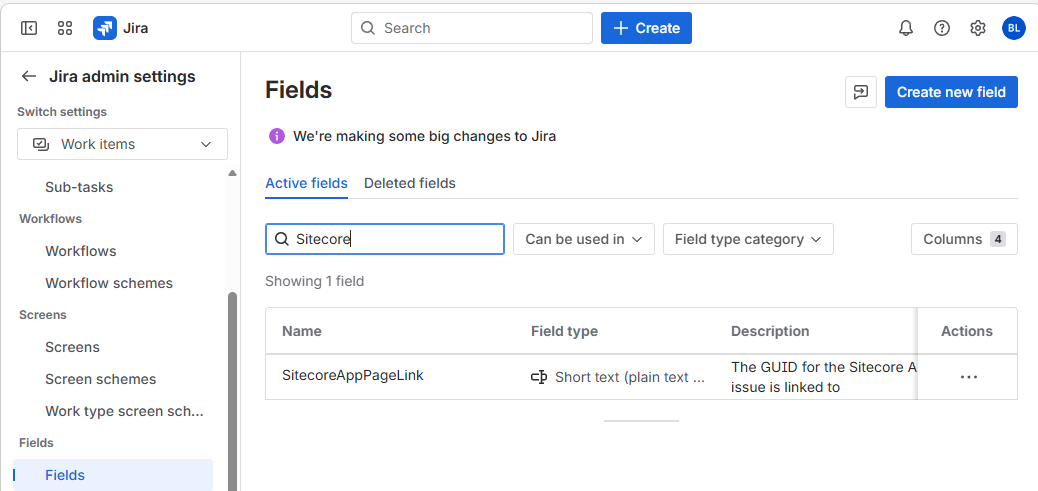
- Log into your Jira Cloud instance as an administrator
- Navigate to Jira Admin Settings > Work Items > Fields
- Click Create new field
- Select Short text (plain text only) as the field type
- Name the field "SitecoreAppPageLink"
- Add the custom field to the relevant item screens
Any project that includes this field will now be linkable from SitecoreAI.
access THE APP
Once installed from the Sitecore Marketplace, follow these steps:
- Open your Sitecore XM Cloud environment
- Navigate to Pages
- The Jira Items plugin panel will appear as an accessible module
AUTHENTICATE WITH JIRA
The plugin requires authentication with your Atlassian account:
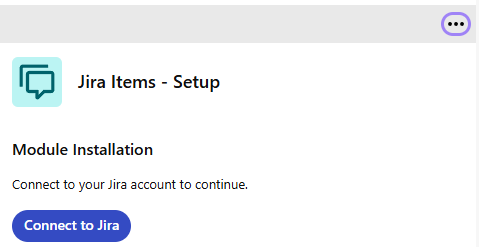
- Click the "Connect To Jira" button in the configuration view
- You will be redirected to Atlassian's secure OAuth login page
- Sign in with your Atlassian credentials
- Authorize the Jira Items application to access your Jira data
- Upon successful authorization, you will be redirected back to Sitecore
- The plugin will automatically store your authentication tokens securely
VIEW ITEMS FOR CURRENT PAGE
Once configured, the plugin automatically displays items linked to the current page:
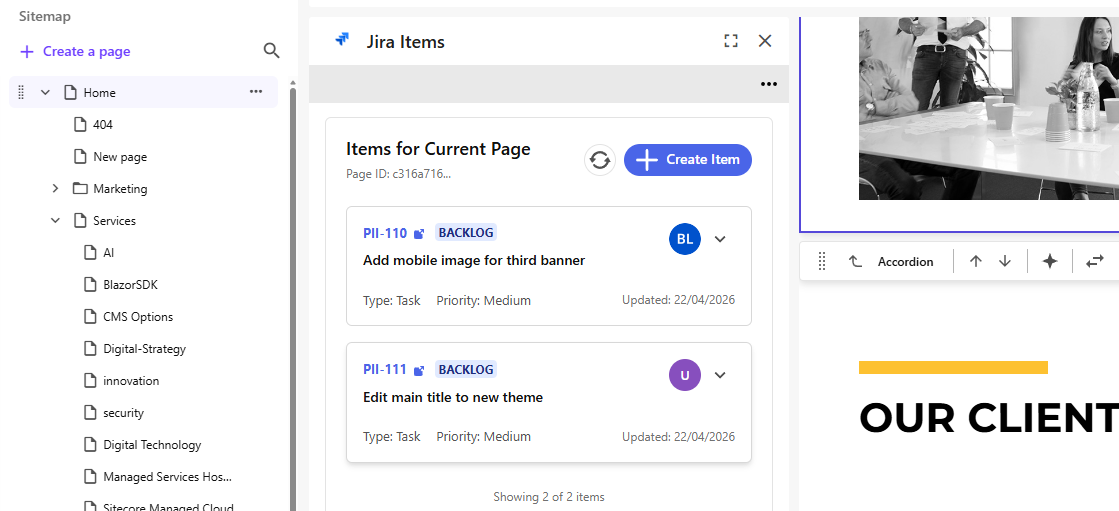
- Navigate to any page in Sitecore Pages
- The plugin will load and display all Jira items where the custom field matches the current page ID
- Items are displayed as cards showing:
- Item key and summary
- Status badge (To Do, In Progress, Done, etc.)
- Item type icon
- Assignee avatar and name
- Description preview
- Direct link to open in Jira
CREATE NEW ITEMS
To create a new Jira item linked to the current page:
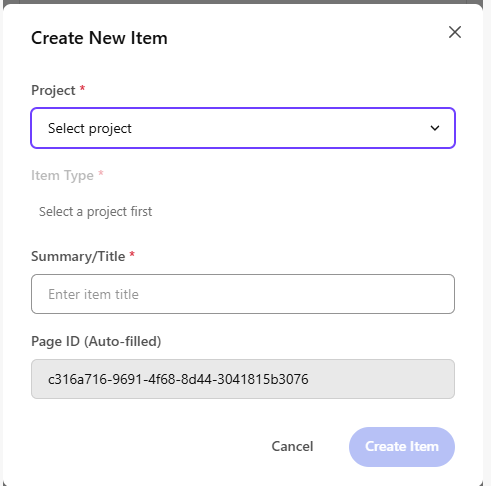
- Click the "Create Item" button (with + icon)
- In the modal dialog, select:
- Project: Choose the Jira project from the dropdown
- Item Type: Select the appropriate item type (Task, Bug, Story, etc.)
- Item Title: Enter a descriptive summary for the item
- Click "Create Item"
- The item will be created in Jira with the current Sitecore page ID automatically populated in the custom field
- The new item will immediately appear in the items list
ASSIGN ITEMS TO USERS
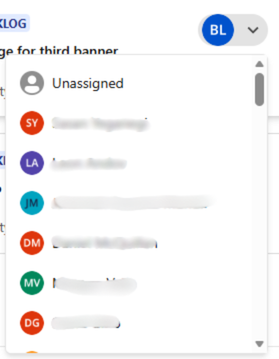
Manage item assignments directly from Sitecore:
- Locate the item card you want to assign
- Click the assignee dropdown (shows current assignee or "Unassigned")
- Select a team member from the list of project-assignable users
- The assignment will be updated in Jira immediately
-
To unassign an item, select "Unassign" from the dropdown
REFRESH ITEMS
Keep your item list up-to-date with the refresh function:
- Click the refresh icon button at the top of the items list
- The plugin will fetch the latest data from Jira
- All item details, statuses, and assignments will be updated
OPEN ITEMS IN JIRA
For detailed item management, open any item directly in Jira:
- Click the external link icon on any item card
- The item will open in a new browser tab in your Jira instance
- Make any detailed changes in Jira as needed
- Return to Sitecore and click refresh to see updates
TECHNICAL DETAILS
The Jira Items plugin is built using:
- Next.js 16 with React 19 for modern web application architecture
- Chakra UI for consistent, accessible interface components
- Sitecore Marketplace SDK for seamless XM Cloud integration
- Atlassian REST API for Jira data access
- OAuth 2.0 for secure authentication flow
- Custom field mapping for page-to-item relationship management
BENEFITS
Streamlined Workflows: Eliminate context switching by managing Jira items directly within the content authoring experience.
Enhanced Collaboration: Improve team communication with page-specific item tracking visible to all stakeholders.
Content Accountability: Maintain clear audit trails linking content changes to specific Jira tasks and bugs.
Faster Resolution: Reduce time-to-resolution by making item management accessible where content work happens.
Project Visibility: Provide project managers and stakeholders with real-time visibility into page-related work.
Quality Assurance: Track bugs and content items at the page level for better quality control.
USE CASES
- Content Production: Track content writing, review, and approval tasks for specific pages
- Bug Tracking: Log and manage page-specific bugs and items directly from the authoring interface
- Feature Requests: Document enhancement requests for specific pages or sections
- Editorial Workflow: Manage content review cycles and feedback for individual pages
- Sprint Planning: Link development tasks to specific Sitecore pages for better sprint tracking
- Quality Assurance: Create and track QA items for content validation and testing
SUPPORT & TROUBLESHOOTING
If you encounter issues with the Jira Items plugin:
- Authentication Failures: Ensure your OAuth credentials are correctly configured and that your Jira account has appropriate permissions
- Missing Items: Verify the custom field ID is correctly configured and matches your Jira setup
- Custom Field Not Found: Confirm the custom field is added to the relevant item screens in Jira
- Token Expiration: The plugin automatically refreshes expired tokens, but you may need to re-authenticate if refresh fails
- Project Access: Ensure your Jira account has access to the projects you are trying to view
For additional support, contact the PING Works team at info@ping-works.com.au.