Harvest Time Tracker


Harvest Time Tracker brings effortless time tracking directly into the Sitecore XM authoring experience, allowing developers, content editors, and project stakeholders to log work without leaving the platform. By integrating seamlessly with the Harvest App, the plugin enables users to track time in context, right where the work happens, eliminating the need to switch between external tools or browser tabs.
With a built-in real-time timer and support for manual time entries, users can accurately record hours for specific projects and tasks while navigating between pages or editing content. Secure OAuth authentication ensures each time entry is logged against the correct Harvest account, maintaining accuracy and accountability across teams.
Plugin Features
-
Real-time Timer:
dedicated start/stop timer functionality that persists even if you navigate away.Flexible Time Entry:
supports both live timing and manual hour input for past work.
-
Seamless Authentication:
secure OAuth login ensuring precise tracking for your Harvest account.
Getting Started:
To begin using the Time Tracker plugin in your Sitecore XM Cloud instance, follow these steps:Requirments
Your company or organisation must have an active Harvest account.
Install the App
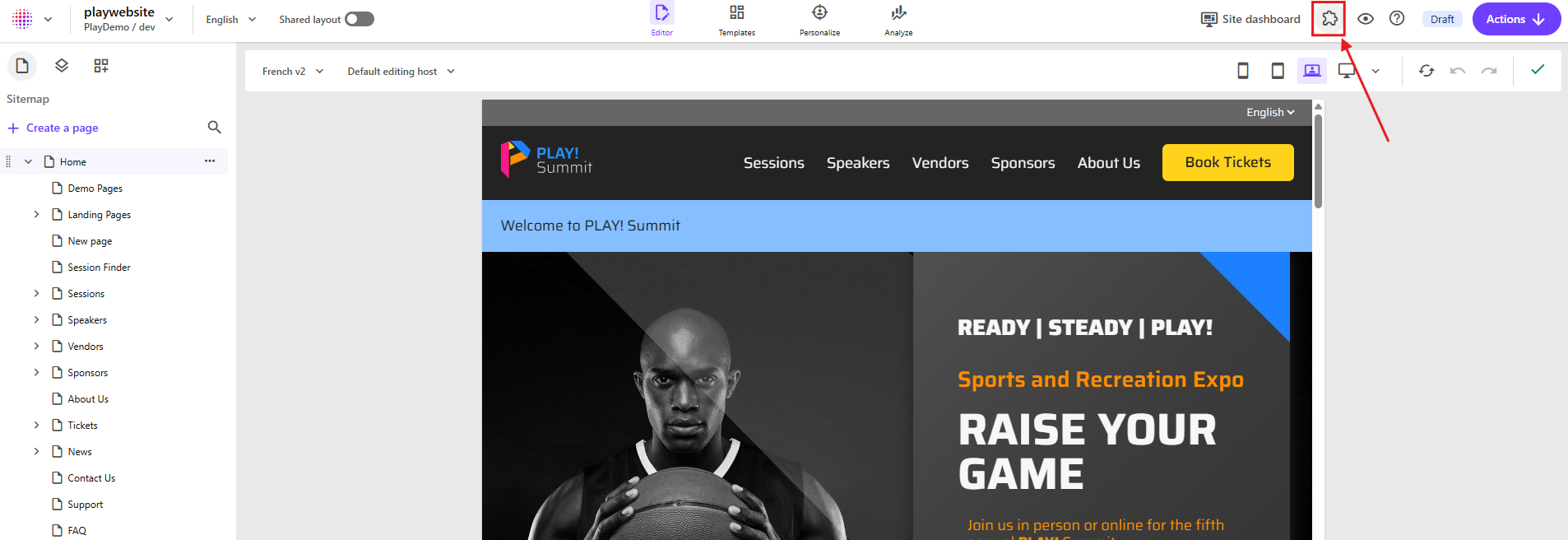
Once installed, open Page Builder - you’ll see the plugin panel appear in the right-hand sidebar.
Run the plugin
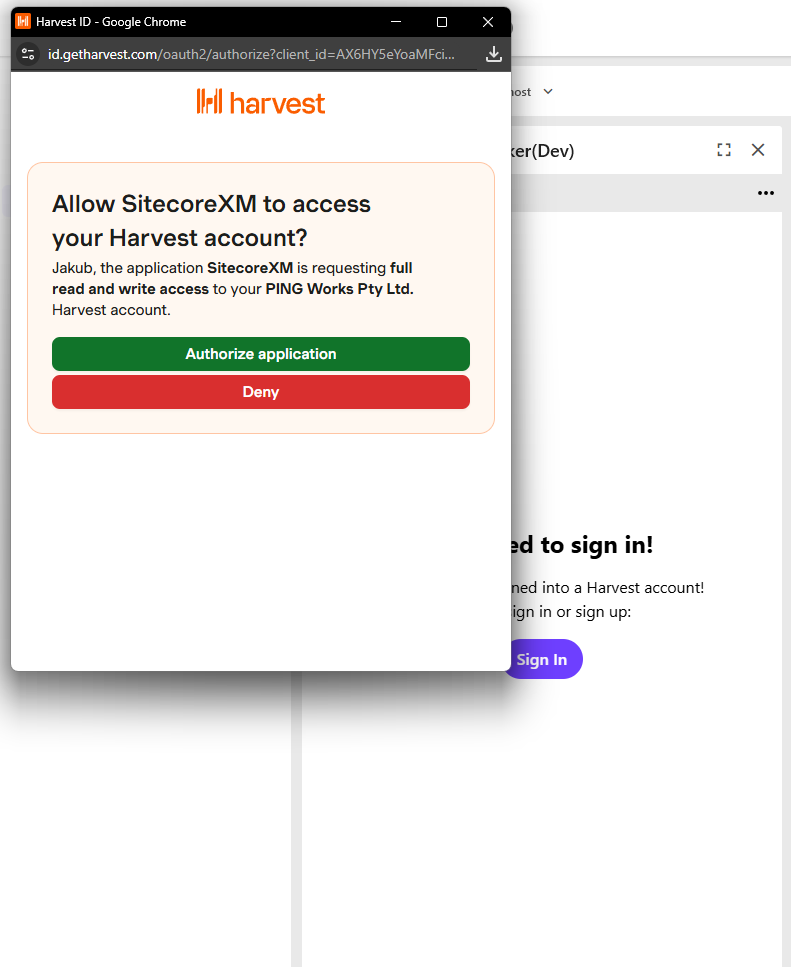
The plugin require log into your Harvest account and authorize the access.
Start/Stop Timer
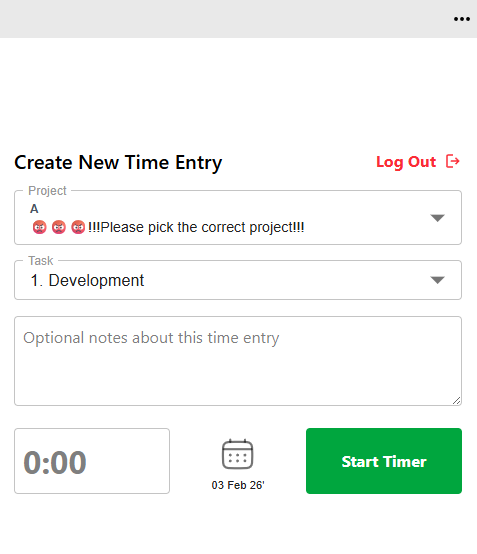
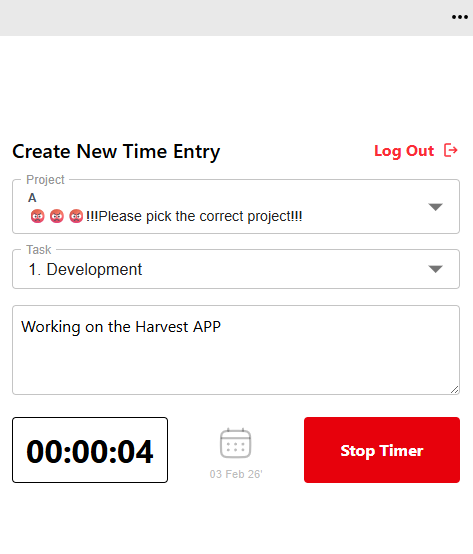
You can start tracking your time by clicking the green “Start Timer” button.
Once started, the stopwatch will begin running. To stop it, click the red “Stop Timer” button, and your time entry will be automatically submitted to the Harvest platform.
Manual Time Entry
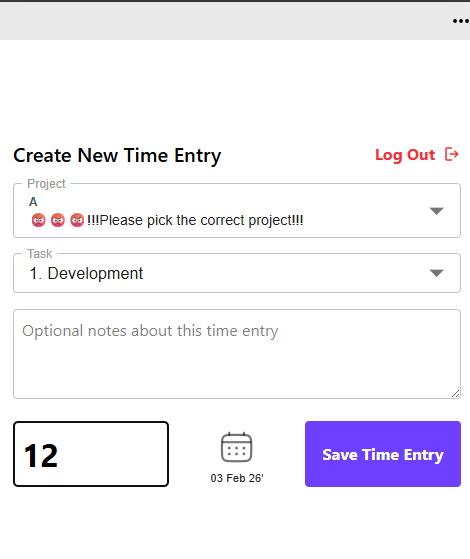
If you want to enter the time manually, you can type the value into the 0:00 input.
Please use a valid format (e.g. 1:30, 0:45, 2.5). Once the format is valid, the green button will change to the purple “Save Time Entry” button.
Change the date
You can specify your date of entry by clicking the calendar icon.