Share To Slack
Share to Slack
Send the Editor or Preview link of the current XM Cloud page to a Slack channel, without leaving the Pages editor.
Our Share to Slack plugin streamlines collaboration for content teams working in Sitecore XM Cloud by embedding Slack sharing directly into the Pages editor. With just a few clicks, users can send either the Editor or Preview link of the current page to a designated Slack channel, eliminating the need to switch tabs, copy URLs, or manually compose messages. This keeps content reviews and approvals within the flow of work, reducing friction and speeding up communication.
The feature supports saving frequently used Slack channels for quick access and lets users add contextual messages when sharing. Whether you're requesting feedback, announcing a page update, or initiating a sign-off, Share to Slack helps teams stay aligned and responsive. It brings collaboration into the authoring environment so content workflows stay agile and transparent.
Plugin features
One-click share from Pages
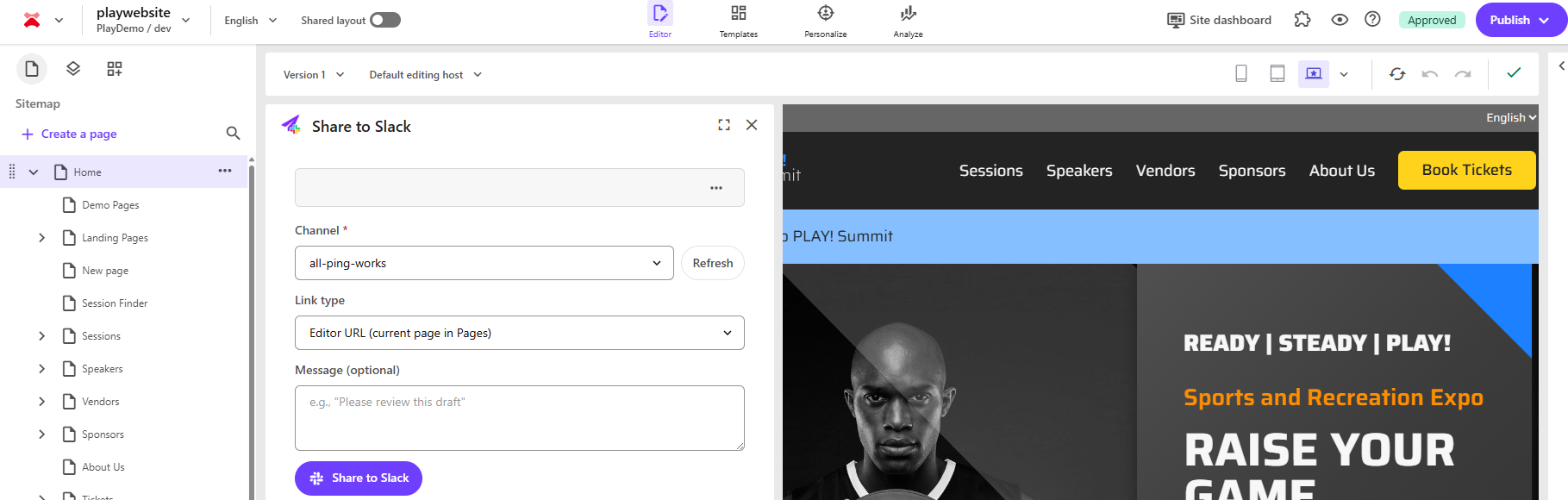
Authors can instantly post the current page's Editor or Preview URL to a Slack channel without leaving the Pages editor. This reduces friction in the review process by removing copy-paste and tab-switching, keeping collaboration within the content-creation flow.
Reusable channel list
Editors can save and label frequently used Slack channels (via Incoming Webhook URLs) such as #marketing, #web-qa, or #content-review. This avoids repetitive admin requests and streamlines sharing by keeping channels easily accessible.
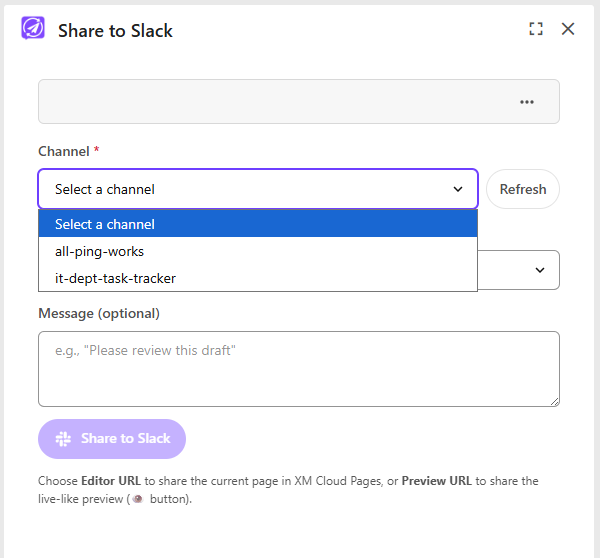
Personal default channel
Each user can set a personal default Slack channel, stored locally in their browser. This speeds up frequent shares by reducing clicks, especially for users who regularly post to the same team or stakeholder group.
Contextual message field
A short message field lets users add context to a share. For example, "SEO check needed" or "Please review by EOD." This improves clarity, sets expectations, and helps recipients prioritise their responses.
Familiar, Blok-aligned UI
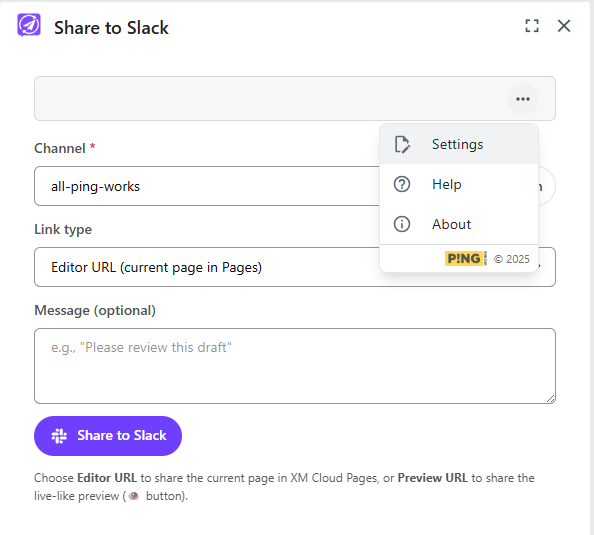
The plugin presents a compact, intuitive panel that aligns with Sitecore's Blok design system. A ⋯ menu provides access to Settings, Help, and About for a consistent, user-friendly experience within the Pages editor.
Right link for the right audience
Users choose between the Editor link (for collaborators with authoring access) or the Preview link (for stakeholders who only need to view the content). This ensures the right level of access and avoids confusion during reviews or approvals.
Getting started
Install the extension
Install the Share to Slack extension from the Sitecore Marketplace or your organisation's approved app list. Once installed, open the Pages editor in Sitecore XM Cloud, and the Share to Slack panel appears in the right-hand sidebar.
Configure Slack channels
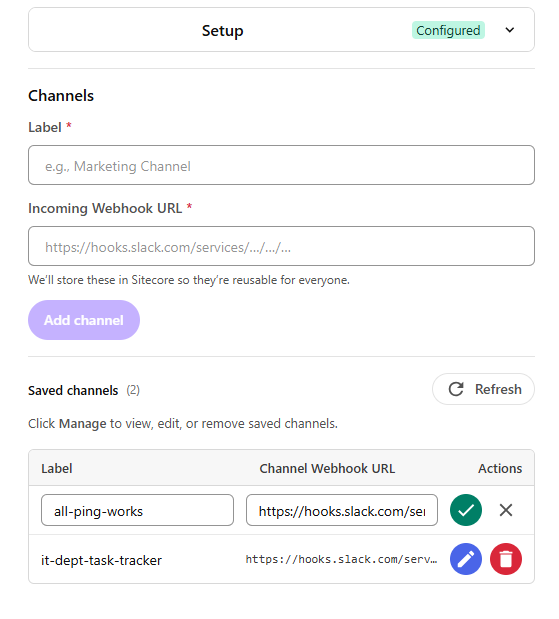
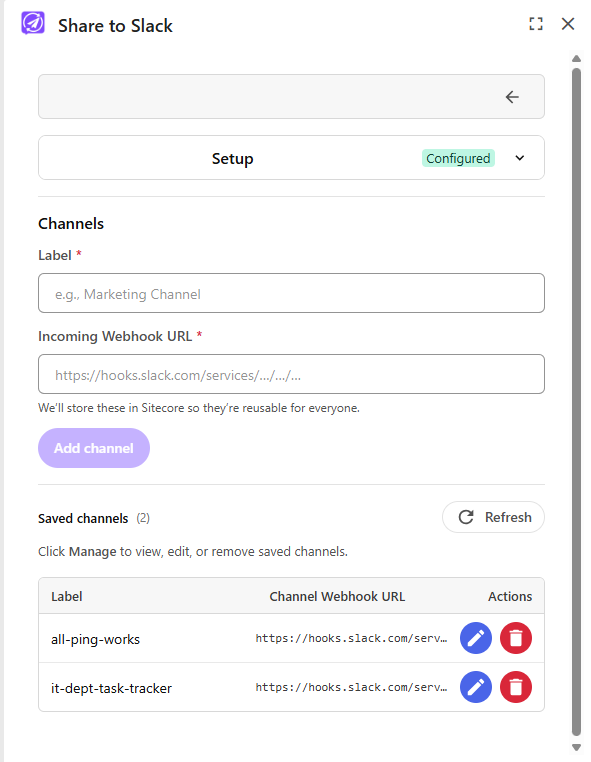
Click the ⋯ menu in the panel and select Settings. Add at least one Slack Incoming Webhook: a label (e.g. "#marketing") and its webhook URL. Saved channels are then available for quick selection when sharing.
Creating a webhook
If you don't have a webhook URL yet, follow the steps below (also linked from Help in the ⋯ menu). Alternatively, ask your Slack workspace admin to enable Incoming Webhooks and generate a channel-specific URL.
- Create or open a Slack app
- Go to api.slack.com/apps and click Create New App, then From scratch.
- Name it (e.g. "Page Review Notifier"), choose your workspace, then Create App.
- Turn on Incoming Webhooks
- In the left sidebar choose Incoming Webhooks.
- Toggle Activate Incoming Webhooks to On.
Generate a URL for a channel
- Scroll down and click Add New Webhook to Workspace.
- Pick the channel (or DM) to post to, then Allow.
- Copy the generated Webhook URL. It looks like:
https://hooks.slack.com/services/T00000000/B00000000/XXXXXXXXXXXXXXXXXXXXXXXX- Add it to the plugin
- Open Settings, then Channels in the plugin.
- Label: a friendly name shown in the dropdown.
- Incoming Webhook URL: paste the URL you copied.
- Click Add channel. It's stored in Sitecore, so it's reusable across your team.
hooks.slack.com/services/… format. A Workflow Builder webhook or bot token won't work. To revoke one, delete it on the app's Incoming Webhooks page and remove it in Settings, Channels.Share a page
In the main panel:
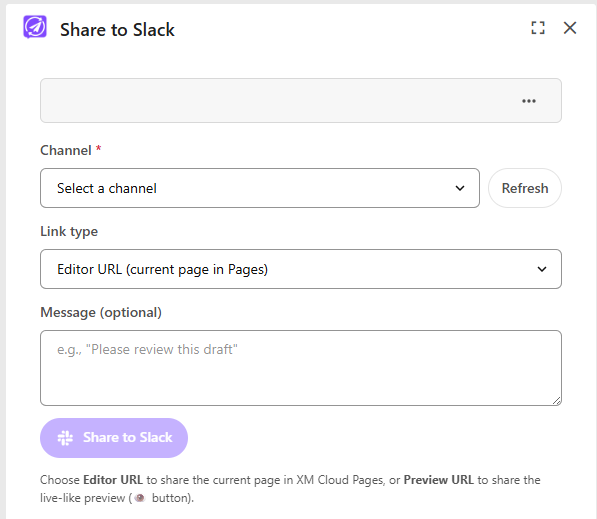
- Select a saved Channel.
- Choose the Link type:
- Editor: for collaborators with authoring access.
- Preview: for stakeholders who only need to view the page.
- Optionally add a Message for context (e.g. "Final review needed" or "SEO check by EOD").
- Click Share to Slack to post the link and message to the selected channel.
Set a default channel (optional)
To streamline future shares, each user can set a default channel. The preference is saved locally and auto-selected when the panel opens.
Manage channels
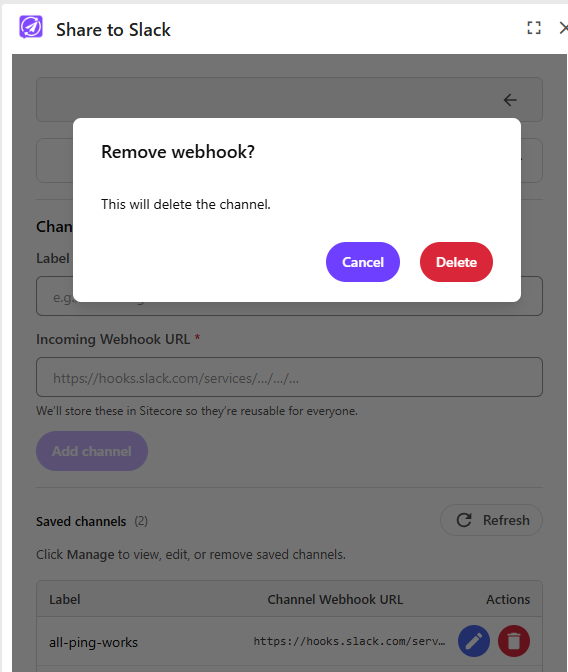
Rename, update, or remove saved channels anytime via the Settings menu. Keeping this list organised ensures consistency across your team and simplifies collaboration.